
Subscribe to Google Calendar

Subscribe to Google Calendar
How to Add a Calendar via URL to Google Calendar
Calendar name:
Faculty Events
Subscription Link:
https://outlook.office365.com/owa/calendar/5de3631841014647a829c350ef080ce1@tauex.tau.ac.il/b66c8bc22aa545e1a051dd3ae126ec519671032263642979152/calendar.ics
1. Copy the relevant subscription link from the table above
2. Open Google Calendar: Go to Google Calendar and sign in if necessary
3. Access Settings
- On the left, find "Other Calendars"
- Click the + button next to it

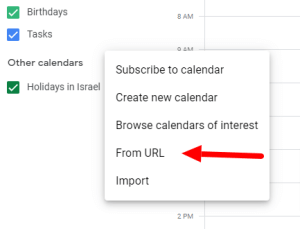
4. Select "From URL"
In the dropdown menu, choose "From URL"
5. Enter Calendar URL
Paste the provided calendar URL into the field

6. Add to Calendar
- Click "Add Calendar"
- The calendar will appear in your list

7. Customize
Adjust the calendar’s color or notifications if desired
8. Rename the Calendar
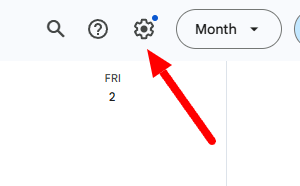
- Go to Settings by clicking the gear icon ⚙ at the top right
- Scroll to the added calendar under Settings for my calendars and click its name
- Enter a new name in the Name field (For example : "Faculty Events") and save changes

!Your calendar is now renamed and ready